Adding Drivers & Vehicles
Create a driver, assign their vehicle, set how they are paid, keep their compliance documents together and invite them to the Speedy Driver App.
Add driver → Vehicle details → Driver pay → Compliance documents → Save driver → Invite driver → Driver sets password and downloads the app
Add the driver
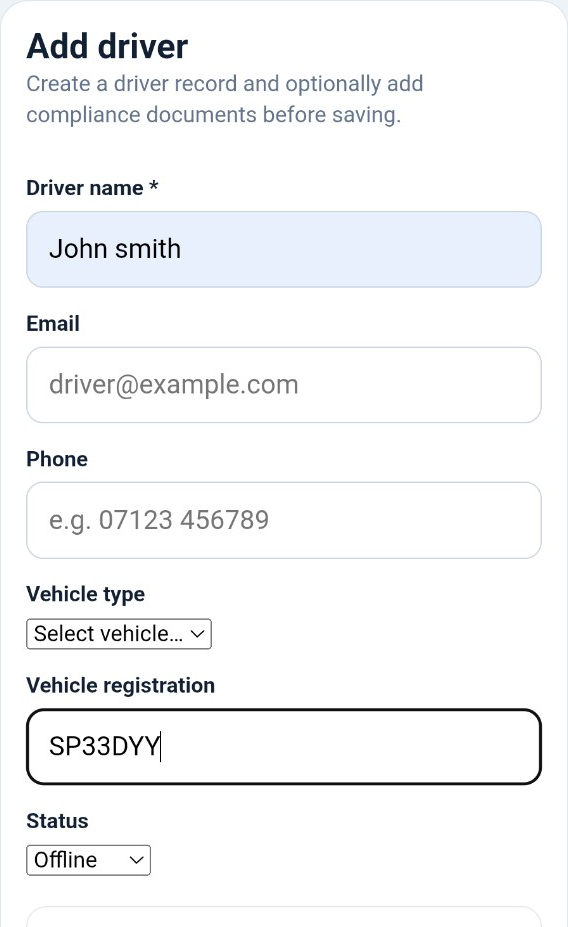
Open Drivers and tap + Add driver. Enter the driver's name, email address and phone number. The email address is important because it is used when you invite the driver to set up their Driver App access.
Assign their vehicle
Select the driver's Vehicle type and enter the vehicle registration. Choose the driver's initial status as appropriate. Vehicle types come from the fleet categories configured for your courier company.
If the driver changes vehicle later, you can return to their record using Edit driver.
Set the driver's pay
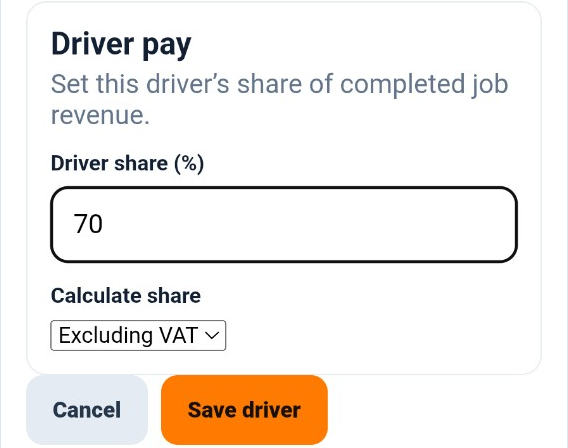
In Driver pay, enter the percentage of completed job revenue that the driver receives. Then choose whether that share is calculated Including VAT or Excluding VAT.
For example, if your agreed driver rate is 70%, enter 70 in Driver share (%). These settings belong to the individual driver, so different drivers can have different arrangements.
Add driver and compliance documents
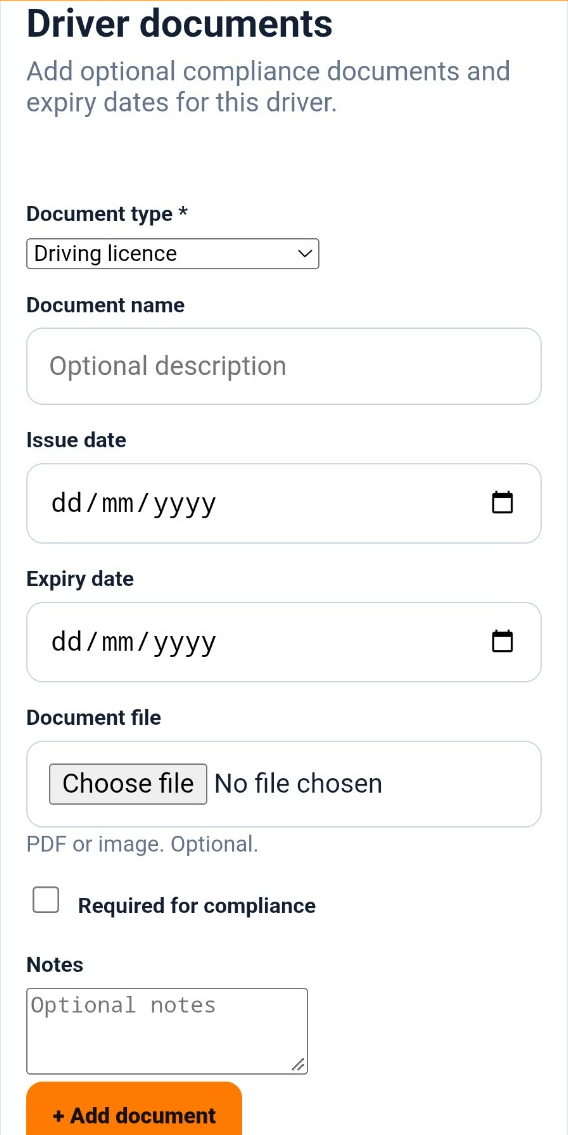
Use Driver documents to keep relevant records with the driver. Select the document type, optionally give it a description, and record its issue and expiry dates where applicable.
You can attach a PDF or image and add notes. Enable Required for compliance when the document is one the driver must hold to meet your company's compliance requirements, then tap + Add document.
Save the driver
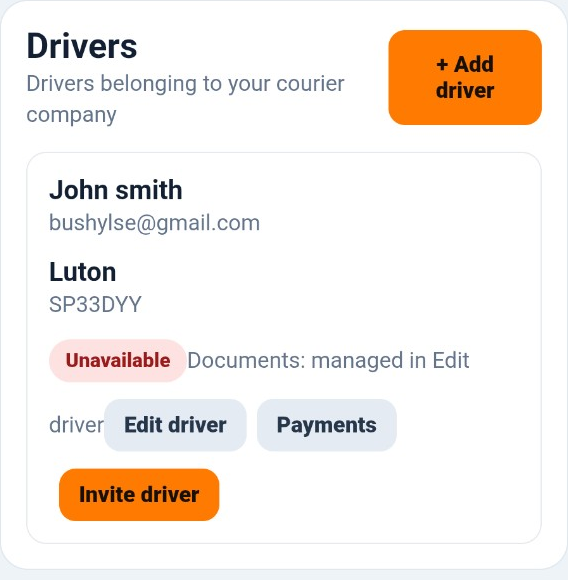
When the driver's details, vehicle, pay settings and any initial documents are ready, tap Save driver. The driver will then appear on the Drivers screen.
You can return to the record with Edit driver to update their details or manage their documents, and use Payments for their driver payment information.
Invite the driver to the Driver App
Find the driver on the Drivers screen and tap the orange Invite driver button.
The driver will receive an email invitation containing a secure link to set up their password, together with the link to download the Speedy Courier Driver app.
Once installed, the driver signs into the app using their email address and newly created password. Their account is linked to your courier company automatically.
Your driver setup is complete
Once the invitation has been accepted and the Driver App installed, the driver can sign in using the account you created for them and begin using the driver workflow.