Invoices & Billing
Review delivered jobs awaiting invoicing, generate invoices, inspect invoice balances and access customer statements.
Customer Accounts → Ready to invoice → Generate invoice → View invoice → Statement
Open Customer Accounts
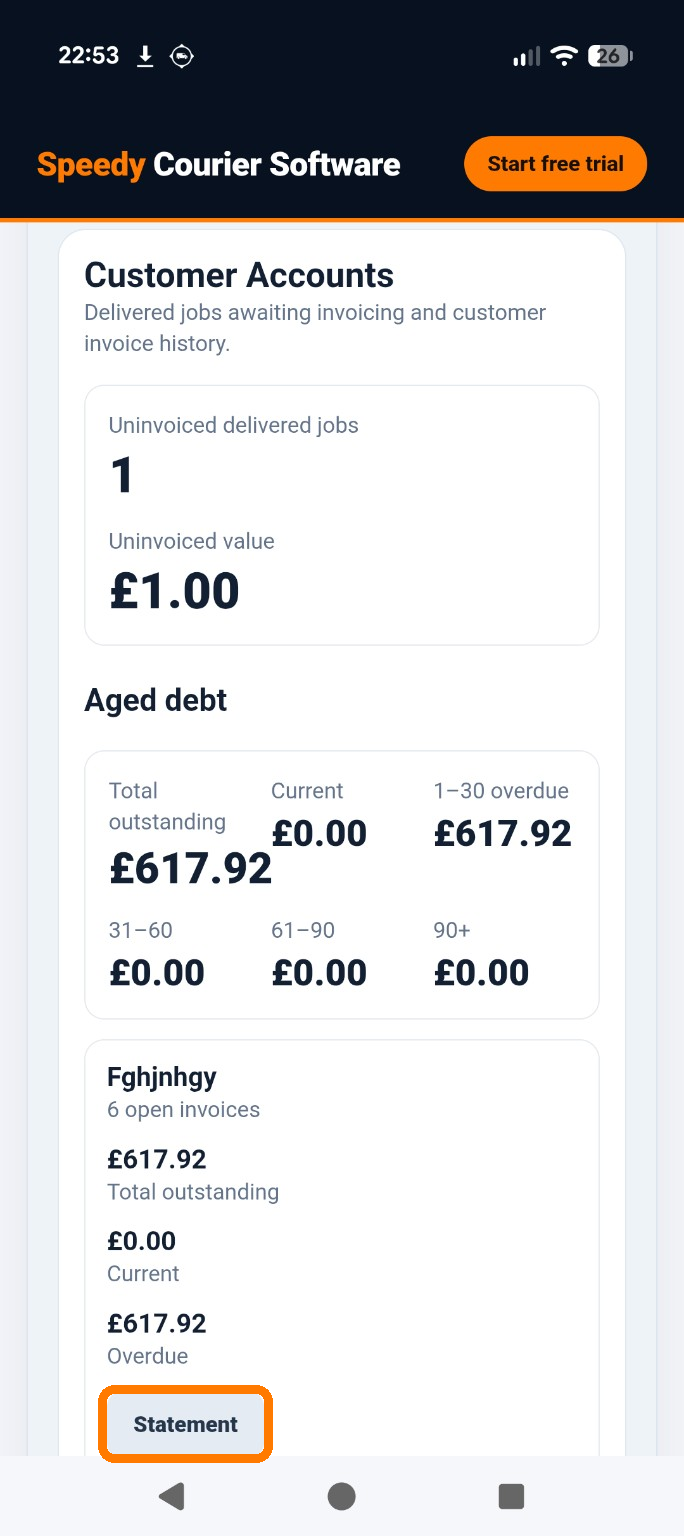
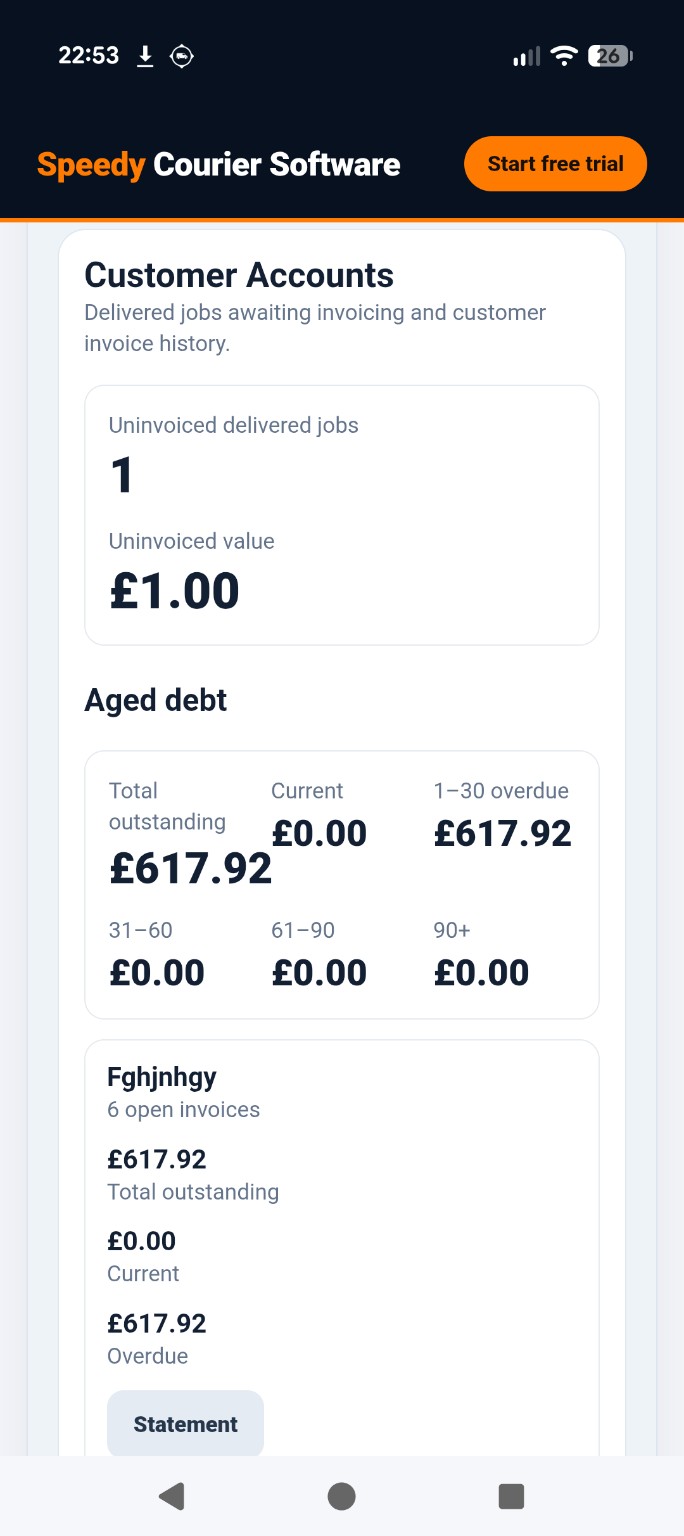
In the Office dashboard, open Customer Accounts. The summary shows delivered jobs awaiting invoicing and their uninvoiced value. It also displays total outstanding debt and age bands, with customer account summaries underneath.
Review jobs ready to invoice
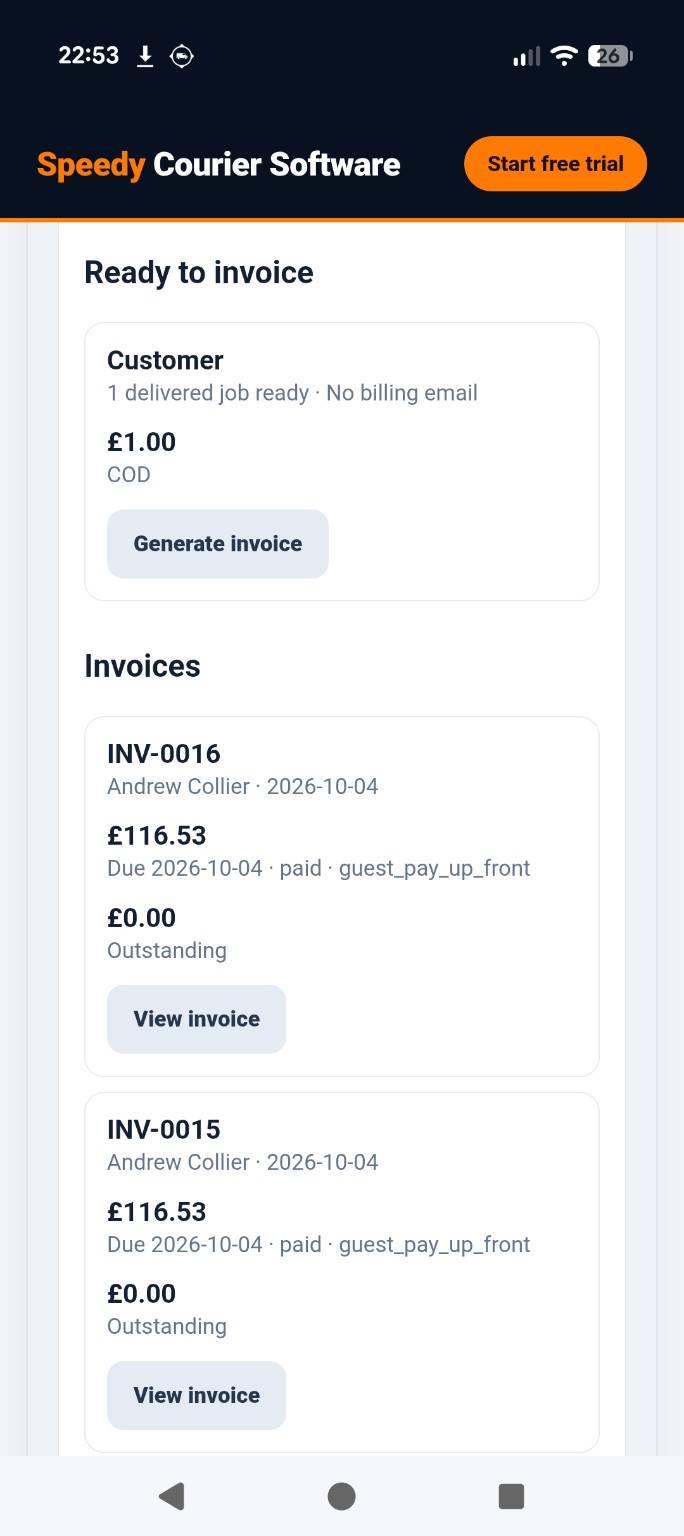
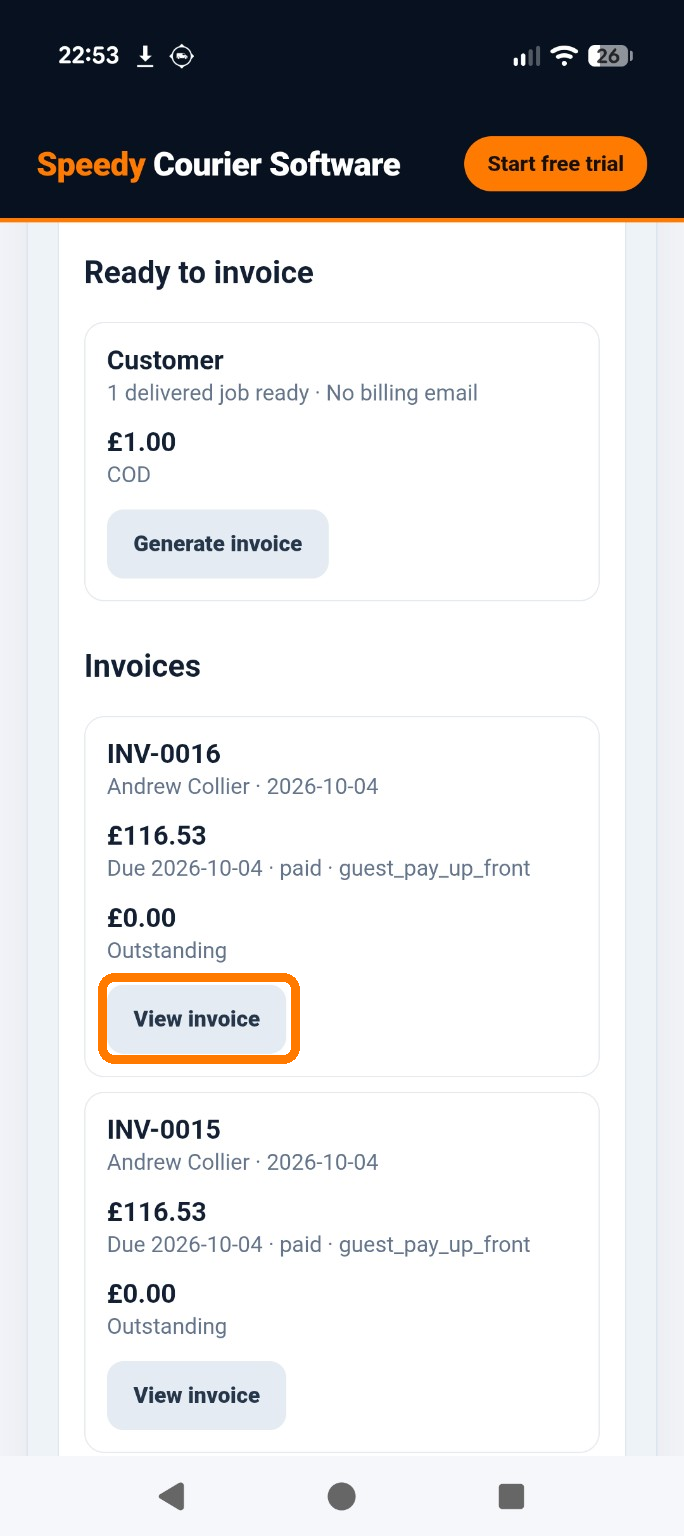
Scroll to Ready to invoice. Each customer entry shows the number of delivered jobs ready, their value and payment terms. Check the customer and amount before continuing. A message such as No billing email indicates that a billing email is not shown for that customer.
Generate an invoice
Select Generate invoice against the relevant ready-to-invoice entry. This starts the invoice-generation action for the delivered job or jobs shown. Check the resulting invoice in the list; the screenshots do not establish whether an email is automatically sent.
Find and view an invoice
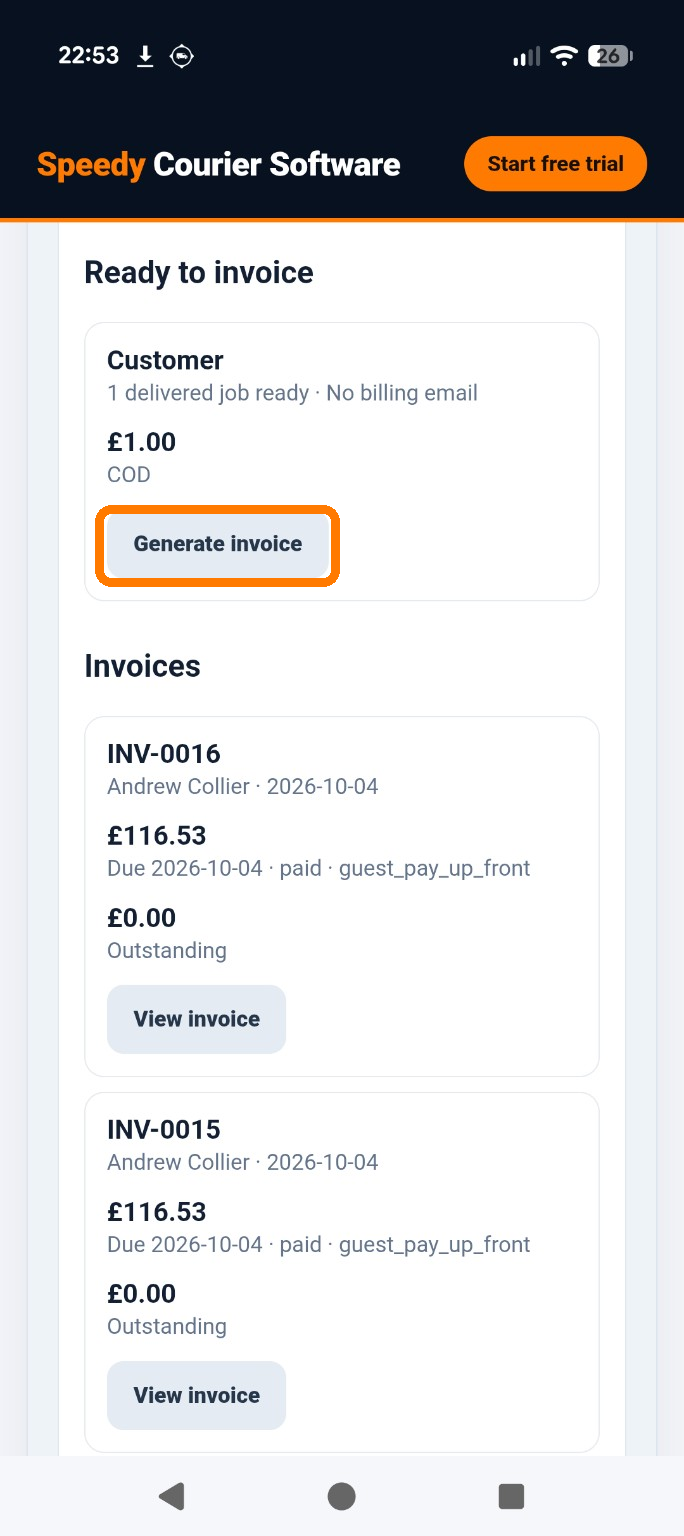
Under Invoices, locate the invoice by its number, customer, date and amount. Each card also displays a due date, payment status and outstanding amount. Select View invoice to open its details.
Understand paid and outstanding balances
An invoice card can show a status such as paid and an Outstanding amount of £0.00. Use these displayed values to review the invoice. A zero outstanding balance indicates no amount remains on that invoice; do not assume a payment has been processed unless the status and payment records confirm it.
Open a customer statement
In the Customer Accounts summary, select Statement on the relevant customer card to open that customer’s statement. Use this for a customer-level account view rather than an individual invoice. A full explanation of statements, payments and aged debt belongs in Guide 06 – Statements & Aged Debt.