Public Booking Link & Customer Portal
Create a unique link for your courier company so new customers can get a live quote and pay by card, while registered account customers can log in to book and manage their own work.
Guest quote → card payment → booking in your dashboard · or · Customer login → account pricing → bookings → jobs → invoices → statements
Open Settings
Sign in to the Speedy Office dashboard and open Settings. Scroll to Public online booking link. Speedy creates a starter link automatically, but you can choose a clearer name for your business.
Enable your public booking link
Tick Enable my public booking link. This allows the public booking page to be used by customers who have the link.
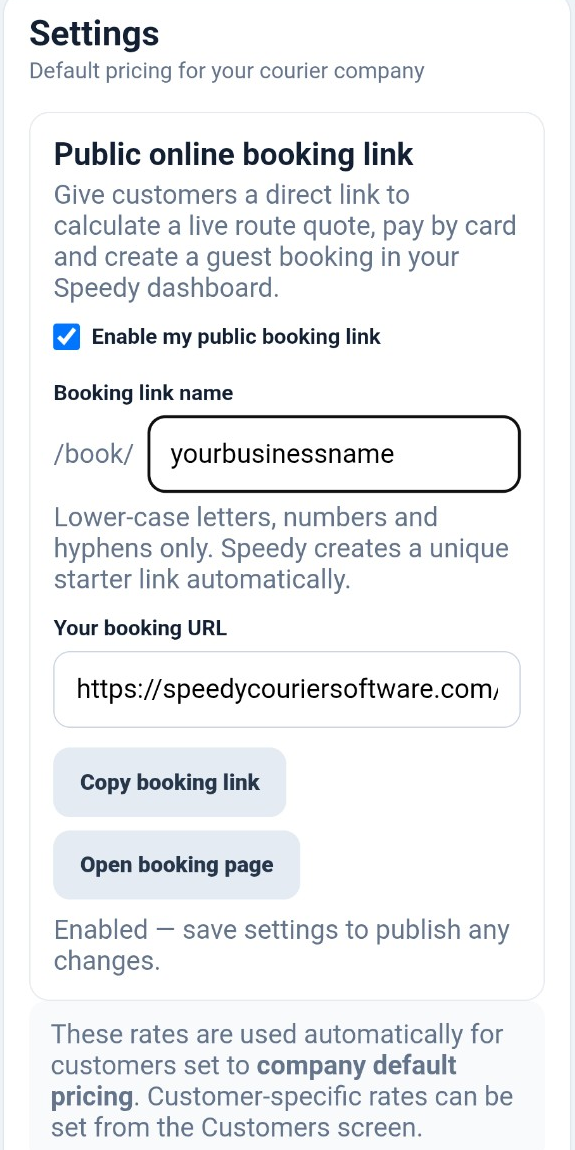
Choose your booking link name
Enter the name you want after /book/. Use lower-case letters, numbers and hyphens only. A simple version of your trading name is usually easiest for customers to recognise and share.
Save and test the page
Select Save settings, then use Open booking page. Check your company name, logo and contact details and run a test quote before sharing the link publicly.
Copy and share your booking URL
Select Copy booking link. You can send the URL by email or SMS, add it to your website and social profiles, or give it directly to customers who want to book online.
The link belongs to your courier company and opens your branded booking experience.
How guest bookings work
A customer who is not logged in can enter collection and delivery details, receive a live route quote and pay securely by card. Once payment succeeds, the job is created in Speedy and appears in Guest Bookings.
- The payment is recorded against the booking.
- A paid invoice is generated for the guest booking.
- The operator can view, print or email the invoice from Guest Bookings.
- The guest record remains separate from your account customers.
Invite account customers to the same page
For trade or account customers, go to Customers and select Invite to portal. The customer receives an email that takes them to your unique booking page to set up or recover their password.
After login, the same page switches into account mode and automatically uses that customer's saved pricing and account relationship.
What registered customers can manage
Logged-in customers can create new account bookings and access their own information without contacting the office for every request.
- Customer-specific or company-default pricing
- Active and completed jobs
- Delivery progress and proof of delivery
- Invoices
- Statements and account balances
Give customers a direct support route
The booking page includes a Contact us option using the telephone number and email address saved for your courier company. Keep those company details current so customers always have the correct number or email when they need help.
See Customers & Accounts for customer records, bespoke pricing and portal invitations.