Revenue & Reporting
Choose a reporting period, filter by customer, review revenue and driver costs, and export your results.
Revenue → Choose dates → Select a customer (optional) → Run report → Review figures → Export CSV (optional)
Open Revenue and choose your report
Select Revenue from the office navigation. Use From and To to choose the period you want to examine. The Customer dropdown defaults to All customers; select an individual customer to narrow the report.
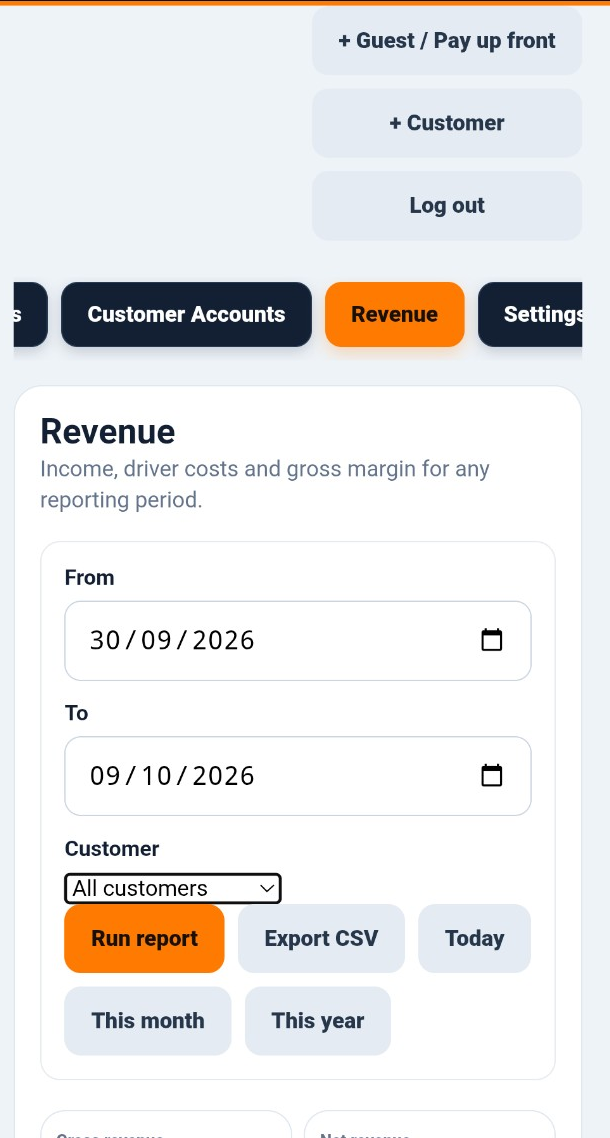
Understand the report buttons
Run report refreshes the figures for the selected dates and customer. Export CSV downloads report data in a spreadsheet-friendly format. The shortcuts Today, This month and This year help you quickly choose common reporting periods.
Read the revenue summary
The summary tiles give you an immediate view of income, VAT, driver costs, profit and outstanding amounts for the report.
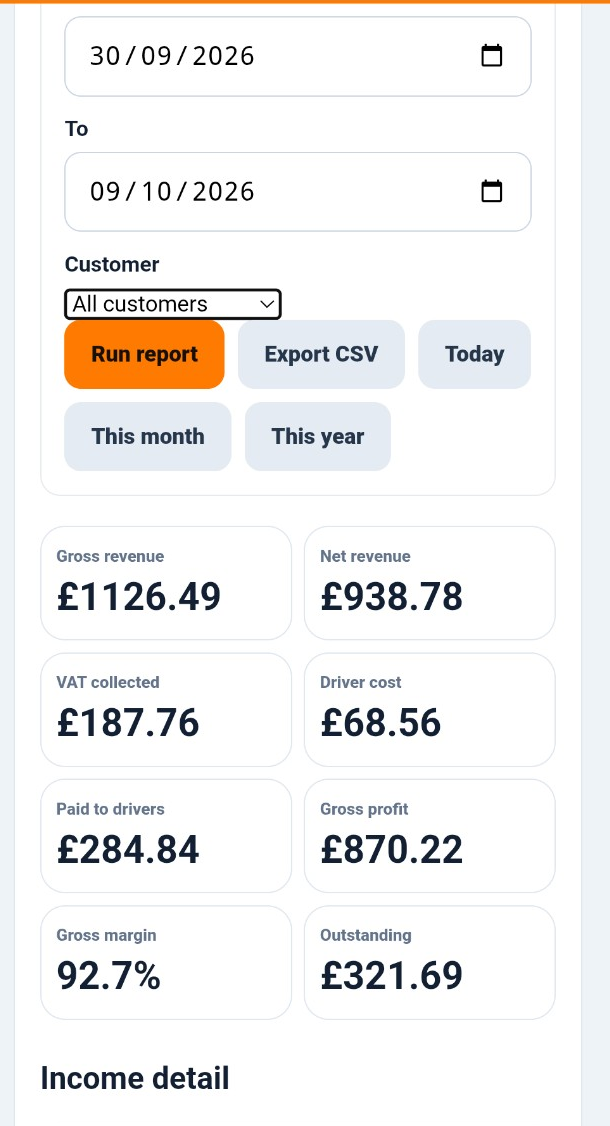
- Gross revenue: Total revenue including VAT.
- Net revenue: Revenue excluding VAT.
- VAT collected: VAT included in the reported revenue.
- Driver cost: Driver earnings cost associated with the reported work.
- Paid to drivers: Driver earnings recorded as settled; this is distinct from the driver-cost figure.
- Gross profit: Net revenue less driver cost, before other business overheads.
- Gross margin: Gross profit expressed as a percentage of net revenue.
- Outstanding: Amount shown as outstanding in the report.
Use the income detail
Scroll below the summary tiles to Income detail for a more detailed breakdown. Use the date range and customer filter above to focus on the part of the business you want to review.
Review performance and export when needed
Use the same reporting controls for daily checks, monthly reviews or a specific customer's activity. Export CSV when you need to work with the data outside Speedy Courier Software.