Statements & Aged Debt
View customer statements, follow debits and credits, check running balances and print or save statements.
Office → Customers → Statement → Select dates → Update → Review transactions → Print / Save PDF
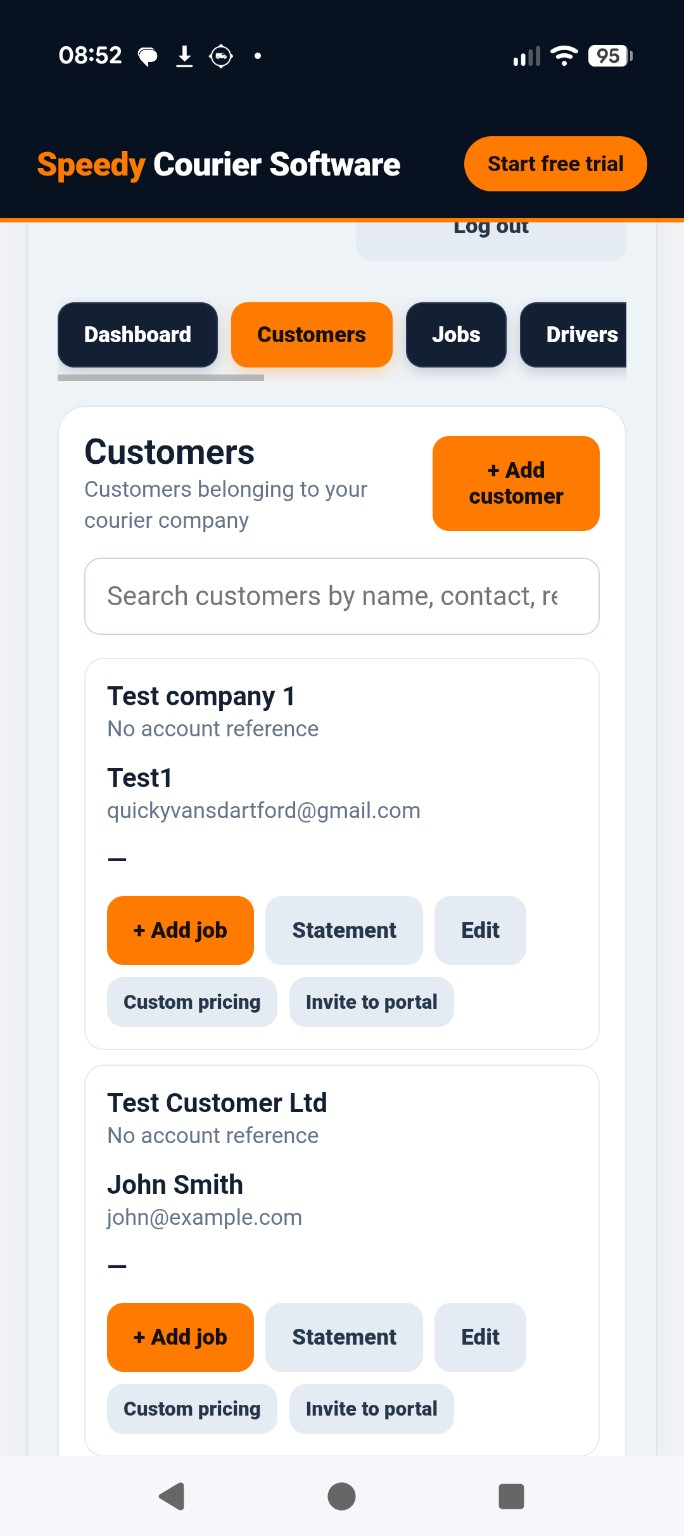
Open a customer statement
In the Office dashboard, open Customers, find the relevant customer and select Statement on their customer card. The statement opens in a separate panel.
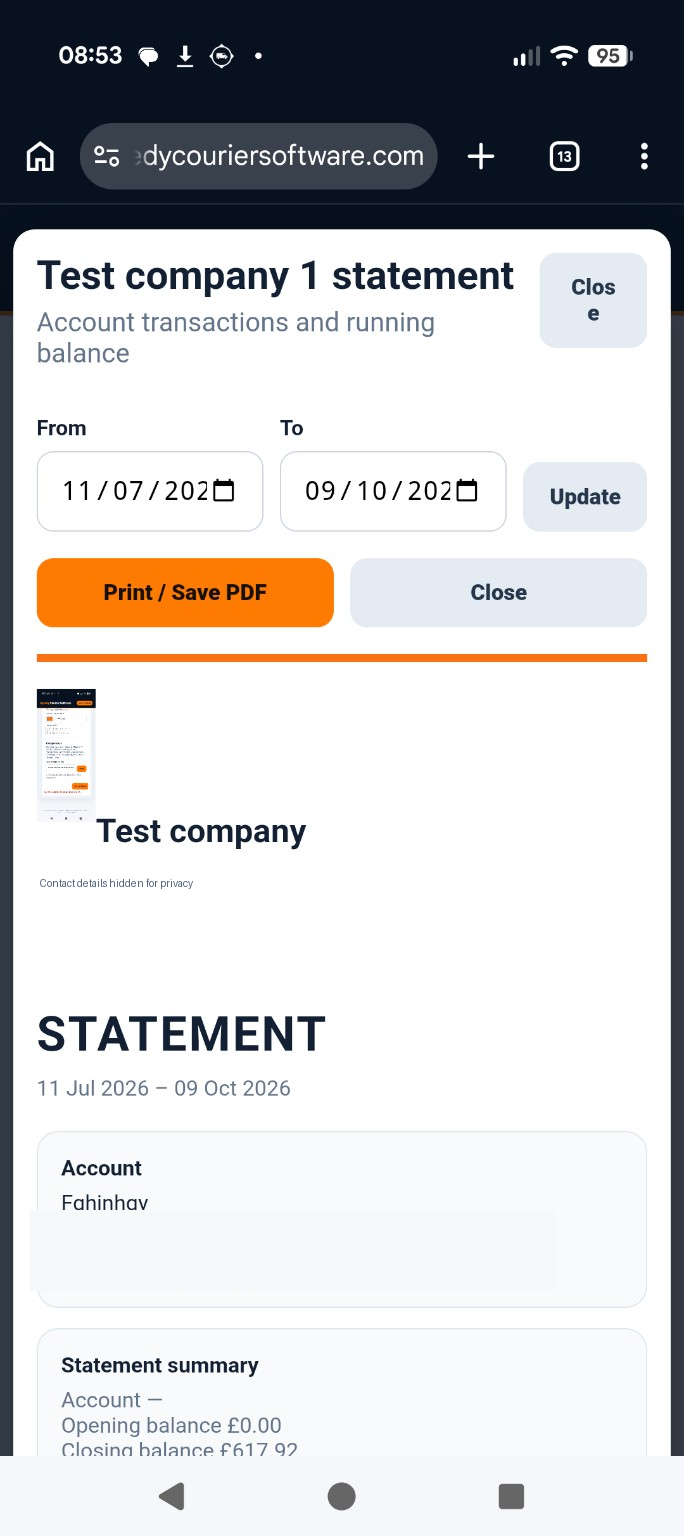
Select the statement period
Use the From and To date fields to choose a reporting period, then tap Update. The panel also provides Print / Save PDF and Close.
Read the statement summary
At the top, check the account name and the opening balance and closing balance. The statement reflects the selected date range.
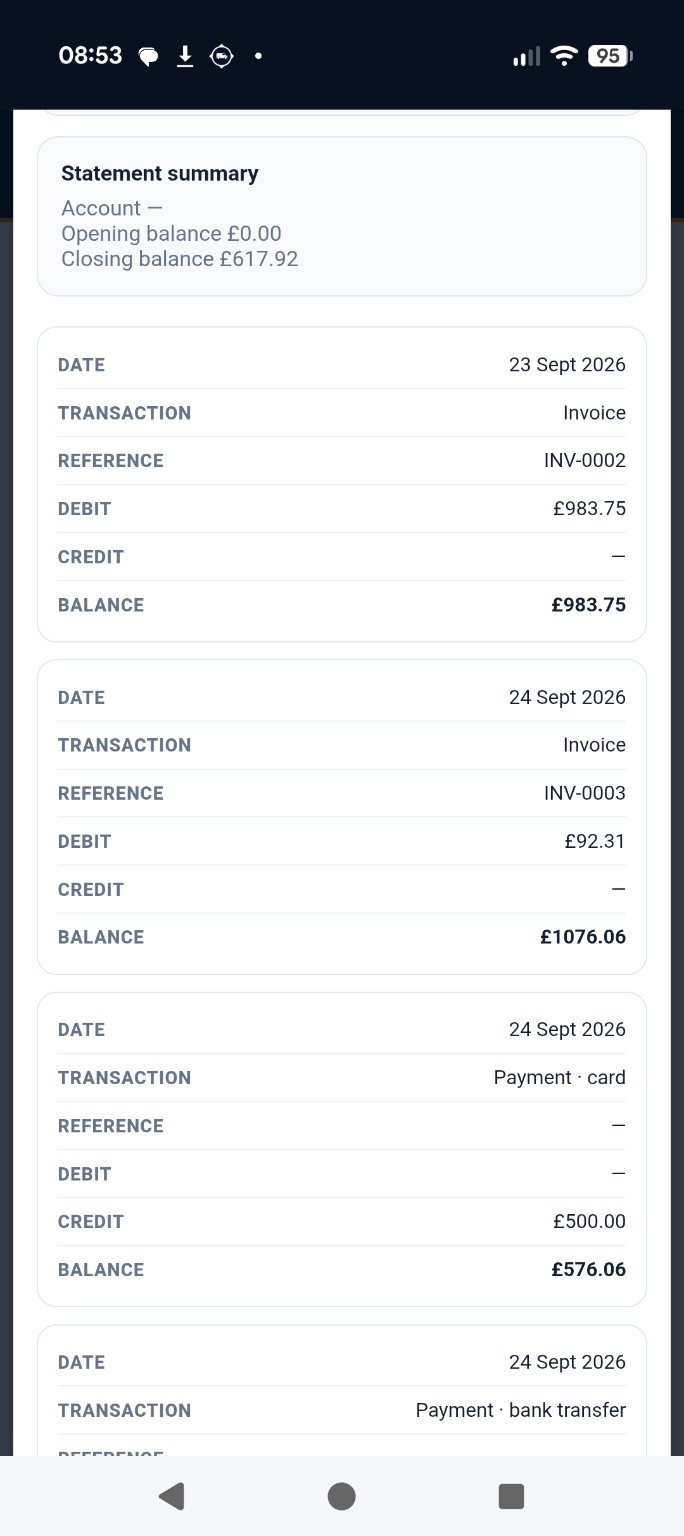
Understand the transactions
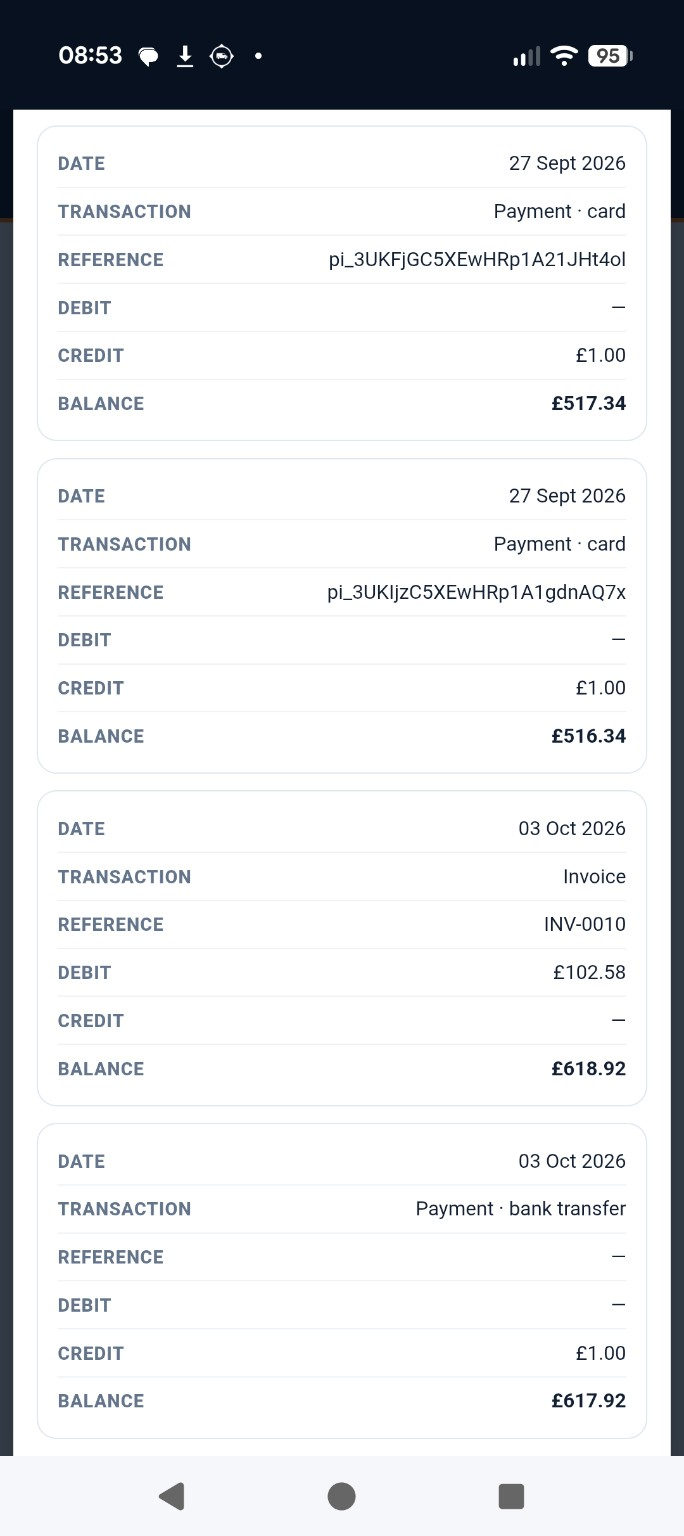
Each transaction is displayed as a mobile-friendly card with its date, type, reference, debit, credit and running balance. Invoices appear as debits and payments as credits. Read the cards from top to bottom to follow the account balance.
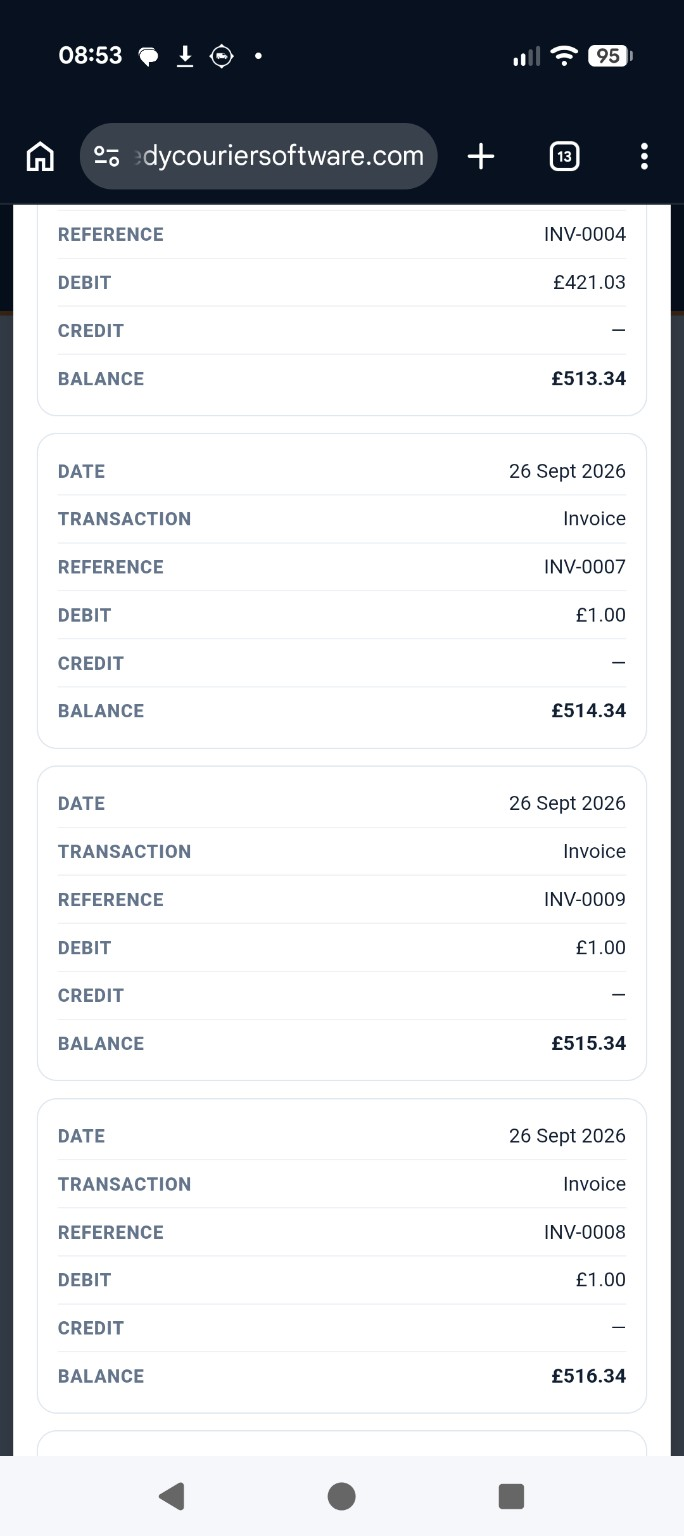
Check payments and references
Payment entries can identify the method, such as card or bank transfer. Where available, the reference helps identify the payment. Long references may take more space on mobile.
Review totals and the balance due
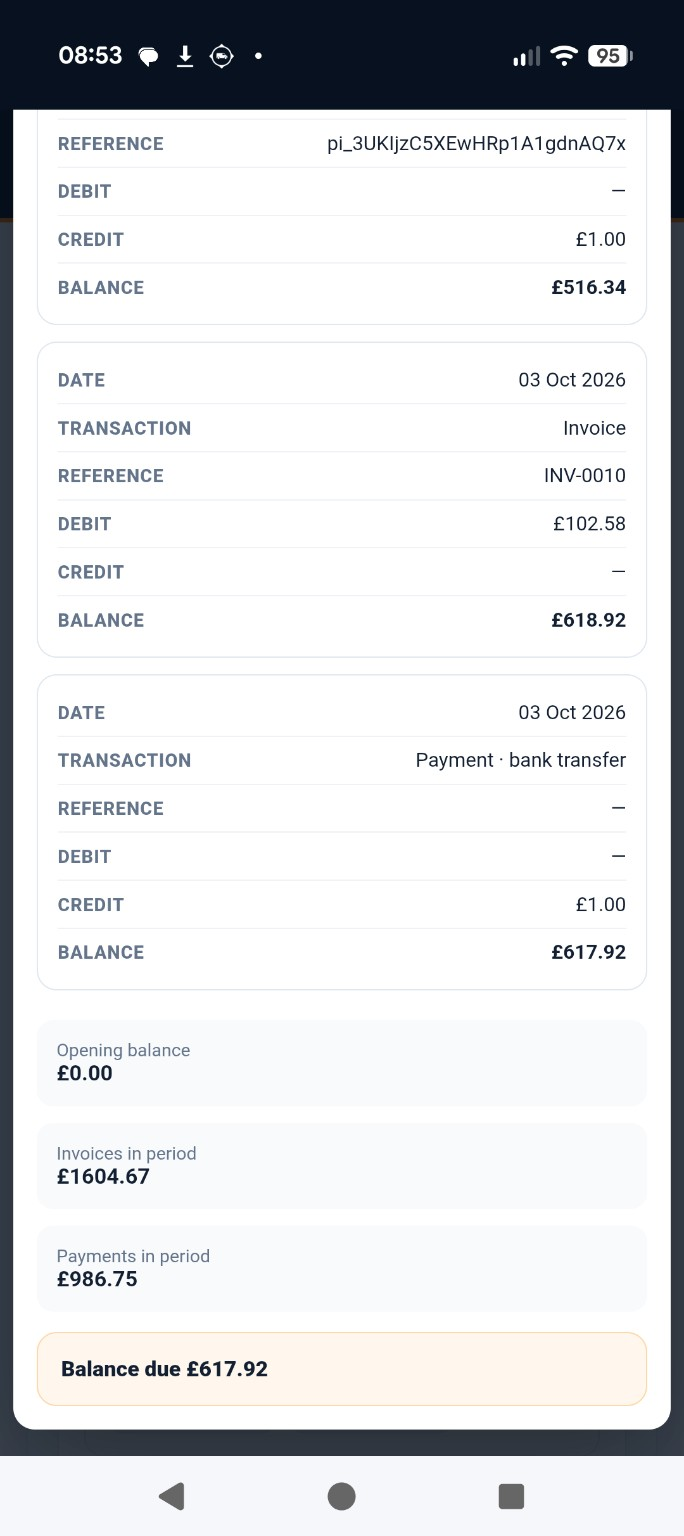
At the end of the statement, compare Opening balance, Invoices in period and Payments in period. The final Balance due summarises the amount outstanding for the displayed statement.
Understanding aged debt
The Customer Accounts overview groups outstanding invoices into Current, 1–30 overdue, 31–60, 61–90 and 90+ day bands. These are ageing categories for unpaid invoices, separate from the transaction-by-transaction statement. See Guide 05 for the Customer Accounts overview.