Understanding Your Dashboard
Your starting point for managing daily courier operations, from creating bookings to checking where your drivers are.
Company and account → Quick actions → Navigation → Live totals → Welcome panel → Live vehicles
Your company and quick actions
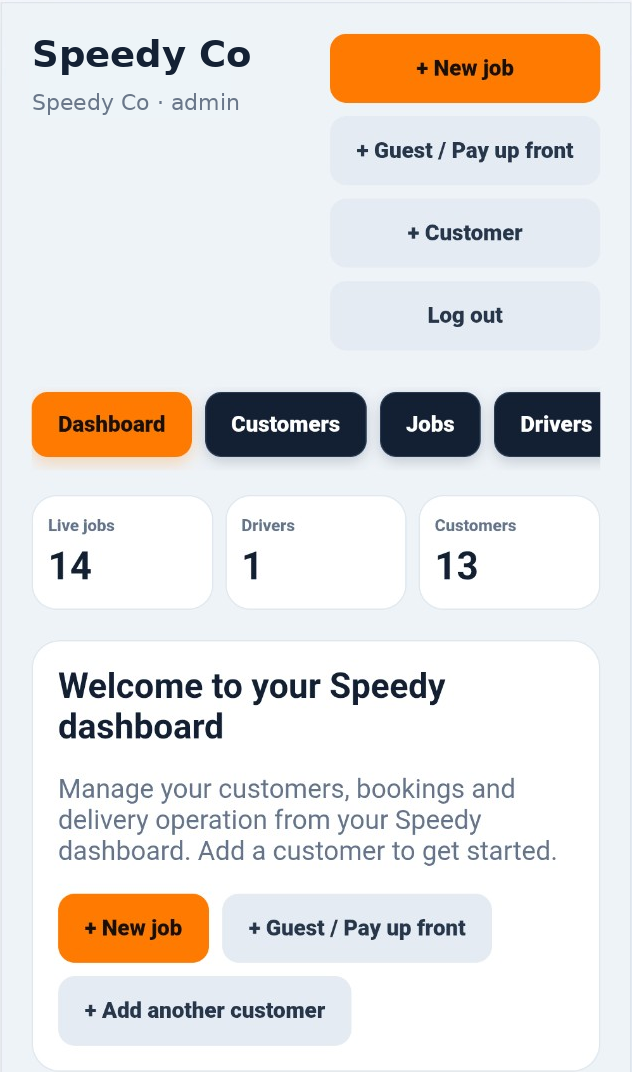
The top of the dashboard displays your company name and the signed-in account's role. In this example, Speedy Co · admin means an administrator is signed in to the Speedy Co company account.
+ New job opens a new booking for an existing customer. + Guest / Pay up front starts a guest booking intended for upfront payment. + Customer takes you to customer creation, while Log out signs you out of the account.
Navigate to the area you need
The navigation row opens the main working areas of Speedy. Dashboard returns you to this overview; Customers opens customer accounts; Jobs opens bookings and delivery management; and Drivers opens driver records and management. On a narrow phone screen, scroll the navigation row horizontally to reach additional sections.
Read your live totals
The three summary cards show Live jobs, Drivers and Customers. These give you a quick operational snapshot without opening each section. In the example there are 14 live jobs, 1 driver and 13 customers; your figures will reflect your own company data.
The welcome panel provides another convenient way to start a new job, create a guest booking or add another customer. These are shortcuts to the same actions available at the top of the page.
Track vehicles on the live map
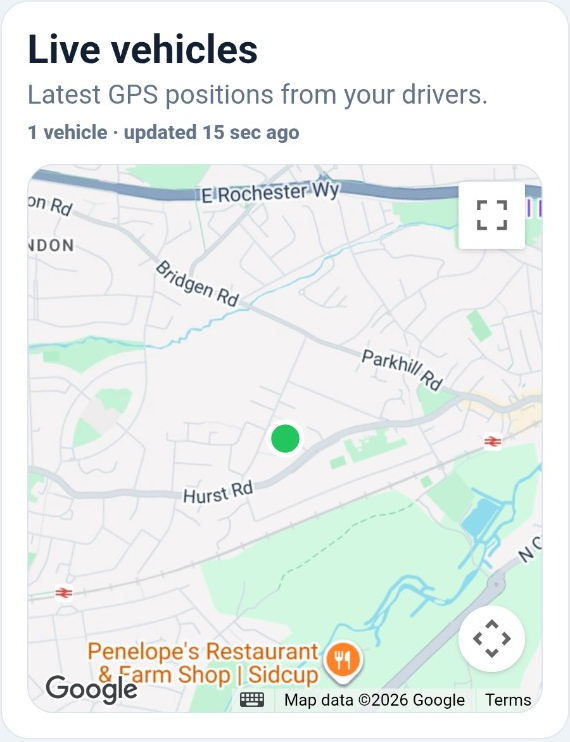
The Live vehicles panel displays the latest GPS positions received from your drivers. The line above the map tells you how many vehicles have reported a location and how recently the displayed position data was updated. The green marker in this example indicates an available driver on the map; other driver statuses may use different marker colours.
Use the map controls to expand or adjust the view. The map reflects the latest reported position, not a guarantee that the driver is still at that exact spot. If updates stop, check the driver's app, location permissions, connectivity and tracking status.
Continue with your daily operations
Use the dashboard as your starting point, and return to the other user guides whenever you need more detailed instructions for jobs, customers, drivers, invoices or reporting.